Best Security Settings You Should Enable on Every Smartphone
Your smartphone is not just a phone anymore.
It is your:
- camera
- wallet
- email inbox
- social media account
- banking device
- shopping account
- photo gallery
- password storage
- work tool
- identity hub
In simple words:
Your smartphone holds a big part of your life.
And that is exactly why it needs proper security.
The problem is that most people buy a phone, use it daily, and never properly secure it.
They may:
- keep a weak lock screen
- ignore software updates
- leave app permissions open
- use unsafe Wi-Fi
- skip account protection
- forget device tracking
- keep sensitive apps easy to open
That creates unnecessary risk.
And in 2026, smartphone threats are no longer limited to “hackers” in movies.
Real risks now include:
- stolen phones
- phishing attacks
- fake apps
- OTP theft
- banking fraud
- account takeovers
- spyware-style abuse
- app permission misuse
- social engineering
Security agencies and platform vendors continue to emphasize basics like strong device lock, updates, encryption, app vetting, and recovery tools because these steps still prevent a large share of real-world compromise.
The good news is this:
You do not need to be a tech expert to make your phone much safer.
You just need to enable the right settings.
This guide will help you understand:
- the best security settings every smartphone should have
- what each setting does
- why it matters
- how to enable it step by step
- what Android and iPhone users should check
- common mistakes to avoid
- real-world examples
This article is written in simple human-friendly English, so even beginners can follow it.
If you use a smartphone every day — this guide is for you.
Why Smartphone Security Matters More Than Ever
A lot of people think:
“There’s nothing important in my phone.”
That is almost never true.
Even if you are not a business owner or creator, your phone probably contains:
- private chats
- saved passwords
- OTP messages
- payment apps
- email access
- personal photos
- banking alerts
- contact lists
- social media accounts
- identity documents
- cloud storage access
So if your phone is lost, stolen, or compromised, the damage may not stop at the device itself.
It can spread to:
- Gmail
- bank apps
- shopping accounts
- cloud files
- YouTube
- saved card accounts
That is why phone security is not only about “locking the screen.”
It is about protecting your entire digital life.
1) Use a Strong Screen Lock First
This is the most basic smartphone security setting — and also one of the most important.
If someone physically gets your phone, the first barrier is your lock screen.
Best lock options
Use one of these:
- 6-digit or longer PIN
- strong alphanumeric passcode
- biometric unlock (Face ID / fingerprint) with passcode backup
Apple requires a passcode to use Face ID, and Face ID / Touch ID are designed to add a secure and convenient extra layer for unlocking, payments, autofill, and protected apps.
Avoid these weak choices
Do not use:
- 1234
- 0000
- 1111
- birth year
- repeated digits
- easy swipe pattern
Why this matters
If your phone gets stolen and your screen lock is weak, the thief may access:
- photos
- messages
- payment apps
- password resets
- SIM tools
- social media
That can become much worse than “just losing a phone.”
Real-world example
Imagine someone steals your phone from a train or café.
If your lock is weak and they guess it quickly, they may then access:
- your email
- OTPs
- banking alerts
- recovery links
Now the problem is no longer the device.
It becomes an account takeover chain.
How to enable it
On Android
- Go to Settings
- Tap Security or Lock Screen
- Choose Screen Lock
- Set a strong PIN, password, or pattern
- Add fingerprint/face unlock if supported
On iPhone
- Go to Settings
- Tap Face ID & Passcode or Touch ID & Passcode
- Tap Turn Passcode On
- Choose a strong passcode
- Set up Face ID or Touch ID
Best practice
Use biometrics for convenience, but keep a strong passcode underneath.
2) Turn On Biometric Security
Biometric security means unlocking your phone using:
- fingerprint
- face recognition
- Touch ID
- Face ID
This makes security more practical because people are more likely to keep protection enabled when it feels easy to use.
Why it matters
A lot of people weaken security because they get annoyed entering a password all day.
Biometrics solve that problem.
You get:
- faster unlock
- easier payments
- safer app access
- more practical daily protection
What it protects
Depending on the phone, biometrics can help secure:
- device unlock
- password autofill
- app lock
- banking apps
- payment approval
- sensitive apps
Apple notes Face ID can be used not only to unlock the iPhone, but also to authorize purchases, sign in to apps, and autofill passwords.
Important note
Biometrics are useful — but they are not a replacement for a strong passcode.
They work best together.
How to enable it
Android
- Go to Settings
- Tap Security / Biometrics
- Add fingerprint or face unlock
- Follow setup instructions
iPhone
- Go to Settings
- Tap Face ID & Passcode or Touch ID & Passcode
- Set up your face or fingerprint
Pro tip
Register your biometric carefully in good lighting and natural hand position so it works reliably.
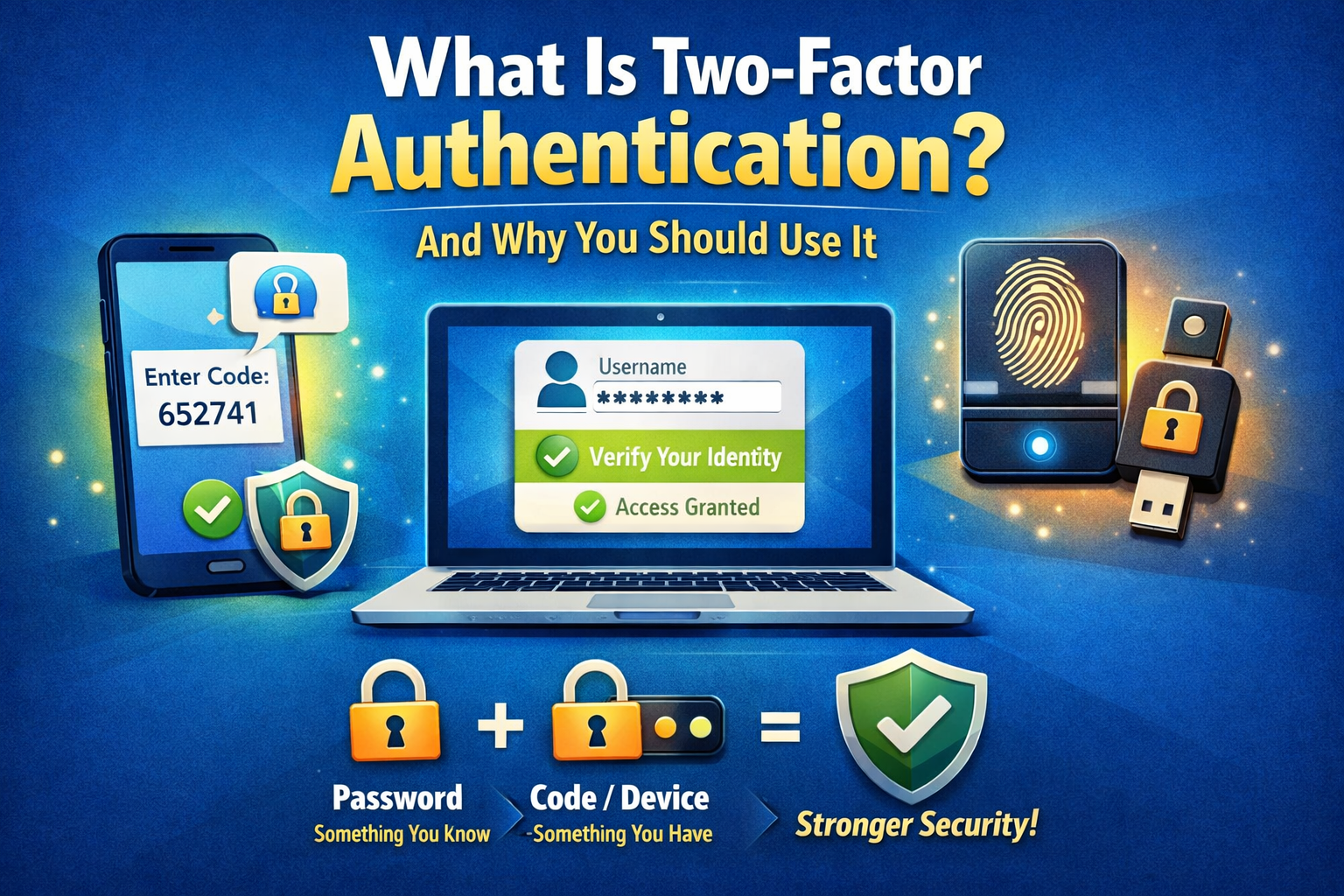
3) Enable Two-Factor Authentication on Your Main Accounts
This is one of the most important security settings, even though it is not only inside the phone itself.
If your phone contains your accounts, then your account security is part of your phone security.
What you should protect first
Turn on 2FA for:
- Google account
- Apple account
- WhatsApp (if available)
- banking-related accounts
- cloud storage
- password manager
Android’s own security guidance highlights Google account protection and 2-step verification as key layers alongside device security.
Why this matters
If someone gets:
- your password
- your email access
- your stolen device
2FA can still stop deeper damage.
Best order
If you only do a few today, start with:
- Google / Apple account
- Banking / payment accounts
- Social media
- Cloud storage
Real-world example
A person loses their phone.
A thief tries to access their email and social media.
If 2FA is already enabled, the attacker may get blocked from taking over those accounts even if they know some details.
Best option
If possible, use:
- authenticator app
- trusted device approval
- strong built-in account protection
instead of relying only on SMS.
4) Turn On Find My Device / Find My iPhone
This is a must.
If your phone is lost or stolen, you need the ability to:
- locate it
- ring it
- mark it as lost
- remotely lock it
- erase it if necessary
Why it matters
Without this setting, losing your phone becomes much harder to control.
With it, you may still have options.
What it can help with
- tracking a misplaced phone at home
- finding a lost phone in public
- locking a stolen device
- protecting data after theft
Android devices that are Play Protect certified include baseline protection features such as Find My Device.
How to enable it
Android
- Go to Settings
- Tap Security or Google
- Open Find My Device
- Turn it On
iPhone
- Go to Settings
- Tap [Your Name]
- Tap Find My
- Turn on:
- Find My iPhone
- Find My network
- Send Last Location
Best habit
Keep this enabled before you lose the phone — not after.
Because after theft, it may be too late.
5) Keep Automatic Software Updates Turned On
A lot of people ignore software updates.
That is a mistake.
Why updates matter
Updates do not only add new features.
They also patch:
- security bugs
- known vulnerabilities
- system flaws
- app-level weaknesses
Google and Android emphasize ongoing security updates as part of device safety, and CISA similarly advises users to keep device software current to reduce known exploit risk.
Why this is important
Attackers often target known weaknesses — especially on devices that are outdated.
So delaying updates for months creates unnecessary exposure.
How to enable it
Android
- Go to Settings
- Tap System
- Tap Software Update or System Update
- Turn on Auto Update if available
iPhone
- Go to Settings
- Tap General
- Tap Software Update
- Tap Automatic Updates
- Turn on:
- Download iOS Updates
- Install iOS Updates
- Security Responses & System Files
Best practice
Update your phone and your apps. Both matter.
A fully updated phone with outdated apps is still a risk.
6) Review App Permissions and Remove Unnecessary Access
This is one of the most ignored privacy-security settings on smartphones.
Many apps ask for access to things they do not truly need.
Examples:
- microphone
- camera
- location
- contacts
- storage
- photos
- notifications
- Bluetooth
- background activity
Why this matters
If you give unnecessary permissions, apps may access more of your personal life than expected.
That creates privacy risk and, in some cases, security risk too.
Real-world example
A flashlight app should not need:
- microphone
- location
- contacts
If it does, that is suspicious or unnecessary.
What to do
Review permissions app by app and ask:
Does this app actually need this access to function?
If not, remove it.
How to check
Android
- Go to Settings
- Tap Privacy
- Tap Permission Manager
- Review:
- Camera
- Microphone
- Location
- Contacts
- Files / Media
iPhone
- Go to Settings
- Tap Privacy & Security
- Review:
- Location Services
- Microphone
- Camera
- Photos
- Contacts
- Bluetooth
- Tracking
Best rule
Grant the minimum permission needed.
Not “Allow Always” unless truly necessary.
7) Turn Off “Always On” Location for Most Apps
Location access is useful — but it should be controlled carefully.
A lot of apps do not need your location all the time.
Best location choices
Prefer:
- While Using the App
- Ask Every Time
Avoid:
- Always Allow
unless absolutely necessary (for example, a trusted navigation or family-safety use case you intentionally want).
Why it matters
Constant location access can reveal:
- where you live
- where you work
- your routines
- travel patterns
- private habits
Apple’s Safety Check and privacy controls are built partly around helping users review and stop unnecessary sharing of information, including location access and app permissions.
How to fix it
Android
- Go to Settings
- Tap Location
- Review app access
- Set most apps to Allow only while using the app
iPhone
- Go to Settings
- Tap Privacy & Security
- Tap Location Services
- Review each app individually
Best habit
Only keep “Always” for apps where background location is truly part of the feature.
8) Enable Google Play Protect or App Scanning
This is especially important for Android users.
What it does
Google Play Protect helps scan apps for harmful behavior and suspicious software.
Android states that Google Play Protect analyzes apps before availability and performs ongoing scans to help detect and disable harmful apps.
Why it matters
Fake or risky apps remain one of the easiest ways malware and fraud enter smartphones.
This is especially risky when users:
- install random APKs
- download modded apps
- install apps from unknown links
- trust copied store pages
How to enable it
Android
- Open Google Play Store
- Tap your profile picture
- Tap Play Protect
- Tap the settings icon
- Turn on:
- Scan apps with Play Protect
- Improve harmful app detection (if shown)
Very important rule
Avoid installing apps from unknown websites unless you absolutely trust the source.
For most people, official app stores are safer.
9) Turn Off App Install From Unknown Sources (If You Don’t Need It)
This is a major Android safety setting.
Why it matters
Allowing unknown installs makes it easier for harmful apps to enter your phone.
A lot of malware arrives disguised as:
- cracked apps
- “premium unlocked” tools
- fake bank apps
- fake social media updates
- modified games
- video downloaders
What to do
If you do not specifically need sideloading:
Keep unknown app installs disabled.
How to check
Android
- Go to Settings
- Tap Apps or Security
- Open Special App Access
- Tap Install Unknown Apps
- Turn off permission for browsers / file apps that do not need it
Best rule
If a random site says:
“Install this file manually for full access”
be cautious.
That is a common fraud path.
10) Turn On Device Encryption (Usually Already Enabled, But Verify)
Encryption protects the data stored on your phone so it is much harder to read without proper access.
CISA explicitly recommends encryption for devices that store important data, noting that unencrypted data is more vulnerable if a device is lost or stolen.
Why it matters
If someone physically gets your phone, encryption helps protect:
- files
- photos
- app data
- messages
- stored information
Good news
Most modern iPhones and Android phones already use encryption when a secure passcode is enabled.
But you should still confirm your device is properly protected by:
- using a lock screen
- keeping the OS updated
- not disabling security features
Practical takeaway
If your phone has:
- no passcode
- outdated software
- weak protection
encryption alone will not save you.
It works best with strong access control.
11) Hide Sensitive Notifications on the Lock Screen
This is a small setting with a big privacy benefit.
Why it matters
Even if your phone is locked, incoming notifications can expose:
- OTP codes
- banking alerts
- private messages
- email subjects
- verification links
- personal chats
That means someone does not need to unlock your phone to see useful information.
Real-world example
A person leaves their phone on a desk.
A banking OTP or reset code appears on the lock screen.
Even without unlocking, someone nearby may see it.
What to do
Hide message content from lock screen.
Let notifications show that something arrived, but not the full details.
How to change it
Android
- Go to Settings
- Tap Notifications
- Tap Lock Screen Notifications
- Choose:
- Hide sensitive content
- or Don’t show notifications
iPhone
- Go to Settings
- Tap Notifications
- Tap Show Previews
- Choose:
- When Unlocked
- or Never
Best option
For most users:
Show previews only when unlocked.
That is a strong privacy default.
12) Secure Your SIM and Carrier-Related Access
A lot of people ignore SIM-related security — but it matters.
Your number is often tied to:
- OTPs
- banking
- account recovery
- login verification
Why it matters
If someone gets access to your SIM or mobile number, they may target your accounts indirectly.
What to do
- Add a SIM PIN if your carrier/device supports it
- Protect your phone physically
- Be careful with suspicious “KYC update” or telecom scam calls
- Do not share OTPs ever
How to check
Android / iPhone
Search in settings for:
- SIM lock
- SIM PIN
- Cellular / Mobile Network security
Not every user needs this, but for many people it adds useful protection.
13) Use a Password Manager Instead of Saving Everything Randomly
This is not a “phone setting” in the narrow sense, but it is one of the best smartphone security decisions you can make.
Why it matters
Many people still:
- reuse passwords
- save passwords in Notes
- use the same password everywhere
- rely on memory only
That is risky.
Better approach
Use:
- trusted built-in password tools
- or a reputable password manager
This helps you:
- create stronger passwords
- avoid password reuse
- store logins safely
- reduce phishing mistakes
Best rule
Your email, banking, and social media should never all share one password.
That is one of the fastest ways a small breach becomes a big problem.
14) Turn On Backup for Important Data
Security is not only about stopping theft.
It is also about recovering safely.
Why backups matter
If your phone gets:
- lost
- stolen
- damaged
- reset
- infected
- broken
you do not want to lose everything.
CISA recommends backing up important data so a lost or damaged device does not become a permanent data loss event.
What to back up
- photos
- contacts
- notes
- app data
- documents
- account recovery info
How to enable it
Android
- Go to Settings
- Tap Google
- Tap Backup
- Turn on Backup by Google One or equivalent backup option
iPhone
- Go to Settings
- Tap [Your Name]
- Tap iCloud
- Tap iCloud Backup
- Turn it On
Best habit
Do not wait for a problem.
Enable backup before you need it.
15) Lock or Protect Sensitive Apps Separately
Some apps deserve an extra layer of protection.
Examples:
- banking apps
- gallery
- notes
- password manager
- payment apps
Why this matters
Even if someone unlocks your phone once, they should not instantly access everything important.
What to use
Depending on your phone, use:
- app lock
- Face ID / fingerprint requirement
- secure folder / private space
- hidden apps for sensitive content
Apple’s recent support guidance notes that with Stolen Device Protection enabled, locked apps can require Face ID / Touch ID when the iPhone is away from familiar locations, adding extra protection if the phone is stolen.
Best use cases
Extra protection is useful for:
- photo vaults
- finance apps
- business accounts
16) Enable Stolen Device Protection or Theft Protection Features
This is a newer and very useful security layer.
Why it matters
Sometimes the biggest risk is not only that your phone is stolen.
It is that the thief also knows or observes your passcode.
That can happen in:
- cafés
- trains
- markets
- crowded public spaces
iPhone users
Apple’s Stolen Device Protection helps block sensitive changes even if someone has your iPhone and knows your passcode. It can require Face ID / Touch ID and, for some actions, even add a security delay before major account changes are allowed.
How to enable it on iPhone
- Go to Settings
- Tap Face ID & Passcode
- Enter passcode
- Tap Stolen Device Protection
- Turn it On
Android users
Some Android phones now offer theft protection, private space, secure folder, anti-theft, or device integrity features depending on the brand and Android version. Google’s security pages also emphasize proactive theft protection and account/device hardening.
Best takeaway
If your phone supports a theft-specific security feature:
Turn it on.
It is worth it.
17) Review Sharing, Connected Devices, and Account Access
Many people secure the phone… but forget the connected ecosystem around it.
That includes:
- old laptops
- tablets
- browsers
- TVs
- shared devices
- family devices
- old logged-in sessions
Why it matters
A secure phone does not help much if your account is still open on an old or untrusted device somewhere else.
What to check
Review:
- where your account is signed in
- which devices are trusted
- which apps have access
- which people or services are still connected
Apple’s Safety Check specifically helps users review device access, account sharing, and privacy permissions — especially useful if you want to quickly audit who or what still has access to your data.
Good times to review
Do this especially if:
- you sold an old phone
- you shared a device before
- you ended a relationship
- you changed jobs
- you logged in on someone else’s device
18) Be Careful With Public Wi-Fi and Use Secure Connections
This is more of a usage habit, but it directly affects smartphone security.
Why it matters
Public Wi-Fi in places like:
- airports
- malls
- cafés
- stations
- hotels
can increase risk if you use it carelessly.
What to avoid on public Wi-Fi
Avoid doing these on unknown networks unless necessary:
- banking
- password resets
- account recovery
- sensitive business work
Best practice
- Use trusted mobile data for important tasks
- Avoid auto-joining random networks
- Use secure apps and HTTPS websites
- Turn Wi-Fi off when not needed
Best rule
Convenience should not outrank security when handling money or identity.
19) Disable Bluetooth and Nearby Sharing When Not Needed
This is a small but useful habit.
Why it matters
Leaving wireless sharing options open all the time increases unnecessary exposure.
Examples include:
- Bluetooth
- Nearby Share / Quick Share
- AirDrop
- NFC sharing modes (when not needed)
What to do
Keep them off unless you are actively using them.
Why it helps
It reduces:
- accidental pairing
- unwanted file requests
- unnecessary discoverability
- small privacy risks in crowded places
Best use case
Especially useful when:
- traveling
- using public transport
- sitting in crowded areas
- attending events
20) Learn One Habit That Prevents More Damage Than Any Setting
This is the most important practical security habit:
Slow down before tapping.
Even the best settings can fail if you:
- install fake apps
- approve fake logins
- click scam links
- share OTPs
- trust fake support calls
Why this matters
Most smartphone compromise does not start with “elite hacking.”
It starts with:
- urgency
- panic
- fake customer support
- phishing
- manipulation
Real-world example
A user gets a message:
“Your banking app must be updated immediately. Click here.”
They click a fake page, install a fake app, and give away access.
No setting can fully protect someone who keeps approving unsafe actions.
That is why awareness matters too.
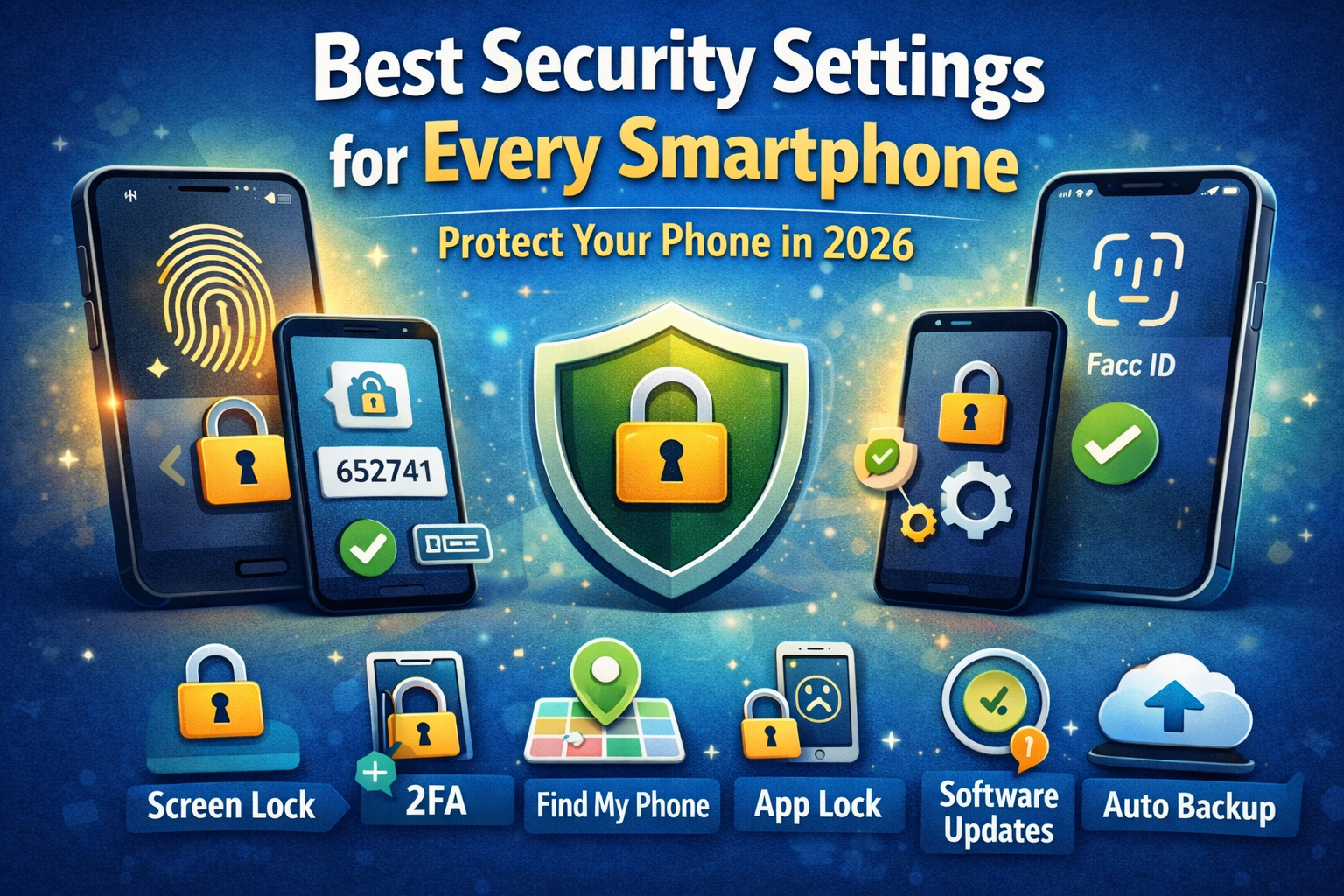
Step-by-Step Smartphone Security Setup Checklist
If you want the fastest practical setup, follow this order.
Quick Security Setup (Do This First)
Step 1Set a strong passcode / PIN
Step 2Turn on Face ID / fingerprint
Step 3Enable Find My Device / Find My iPhone
Step 4Turn on automatic software updates
Step 5Enable 2FA on:
- Apple / Google account
- social media
- banking-related accounts
Step 6Review app permissions
Step 7Hide lock screen notification previews
Step 8Turn on backup
Step 9Enable Play Protect / app scanning (Android)
Step 10Turn on Stolen Device Protection / theft protection if available
Best Smartphone Security Setup for Beginners
If you want the easiest “normal person” version, this is enough:
- strong lock screen
- fingerprint / Face ID
- 2FA on email
- Find My turned on
- app permissions reviewed
- phone updated
- lock screen previews hidden
- backups enabled
If you do just these, your phone becomes far safer than the average user’s device.
Common Smartphone Security Mistakes to Avoid
A lot of security problems happen because of avoidable habits.
Avoid these mistakes
- using weak PINs
- skipping updates
- ignoring 2FA
- installing random APKs
- giving apps too many permissions
- showing OTPs on lock screen
- using public Wi-Fi carelessly
- keeping Bluetooth / sharing always on
- saving everything in plain notes
- assuming “it won’t happen to me”
Truth
Most people do not get compromised because they are unlucky.
They get compromised because small risky habits add up.
What is the most important security setting on a smartphone?
A strong lock screen with a good passcode is the foundation, but it should be combined with biometrics, updates, device tracking, and account-level 2FA.
Should I use fingerprint or face unlock?
Yes. Biometrics are useful and convenient, especially when paired with a strong passcode underneath.
Is Find My Device really necessary?
Yes. It can help you locate, lock, or erase a lost phone, which is extremely important in theft or loss situations.
Are software updates really that important?
Yes. Updates often fix known security vulnerabilities and improve protection.
Should I hide OTPs and messages on the lock screen?
Yes. Sensitive previews on the lock screen can leak useful information even without unlocking the phone.
Is it safe to install APK files from random websites?
No. That is one of the easiest ways to install harmful software on Android.
Do iPhones also need security settings?
Absolutely. iPhones are generally secure, but users still need to enable the right protections like passcode, Face ID, Find My, 2FA, backups, Safety Check, and Stolen Device Protection.
What should I secure first if I have only 10 minutes?
Do these first:
- lock screen
- biometrics
- Find My
- updates
- email 2FA
Final Thoughts
Your smartphone is one of the most powerful devices you own.
But that also means it can become one of the most damaging devices to lose control of.
The good news is:
Strong phone security does not require advanced technical skills.
It mostly comes down to good settings + good habits.
If you remember only a few things from this article, remember these:
- use a strong passcode
- turn on biometrics
- enable Find My
- update your phone
- review app permissions
- turn on 2FA
- hide sensitive lock screen notifications
- back up your data
- avoid unknown apps and scam links
That is not “extra security.”
In 2026, that is basic digital self-protection.
And the sooner you set it up, the safer your phone — and your entire digital life — becomes.
What Is 2-Factor Authentication and Why Should You Use It?
Almost everything we do online today is connected to an account. You log in to: email Instagram WhatsApp YouTube bank apps etc...