What Is 2-Factor Authentication and Why Should You Use It?
Almost everything we do online today is connected to an account.
You log in to:
- YouTube
- bank apps
- shopping websites
- work tools
- cloud storage
- AI tools
- payment apps
And most of those accounts are protected by only one thing:
Your password
That sounds fine… until you realize how often passwords get stolen, guessed, leaked, reused, or phished.
That is exactly why Two-Factor Authentication, also called 2FA, has become one of the most important online safety tools today.
In simple words:
2FA adds one extra security step before someone can access your account.
That small extra step can make a very big difference.
Even if someone gets your password, they still may not be able to log in.
That is why companies like Microsoft and the Federal Trade Commission continue to recommend two-factor authentication as one of the easiest and most effective ways to protect online accounts.
This guide will help you understand:
- what two-factor authentication is
- how it works
- why passwords alone are not enough
- different types of 2FA
- which method is best
- how to turn it on
- common mistakes to avoid
- real-world examples anyone can understand
This article is written in simple English so beginners can understand it easily.
If you use the internet regularly, this article is for you.
What Is Two-Factor Authentication?
Let’s make it simple.
Definition
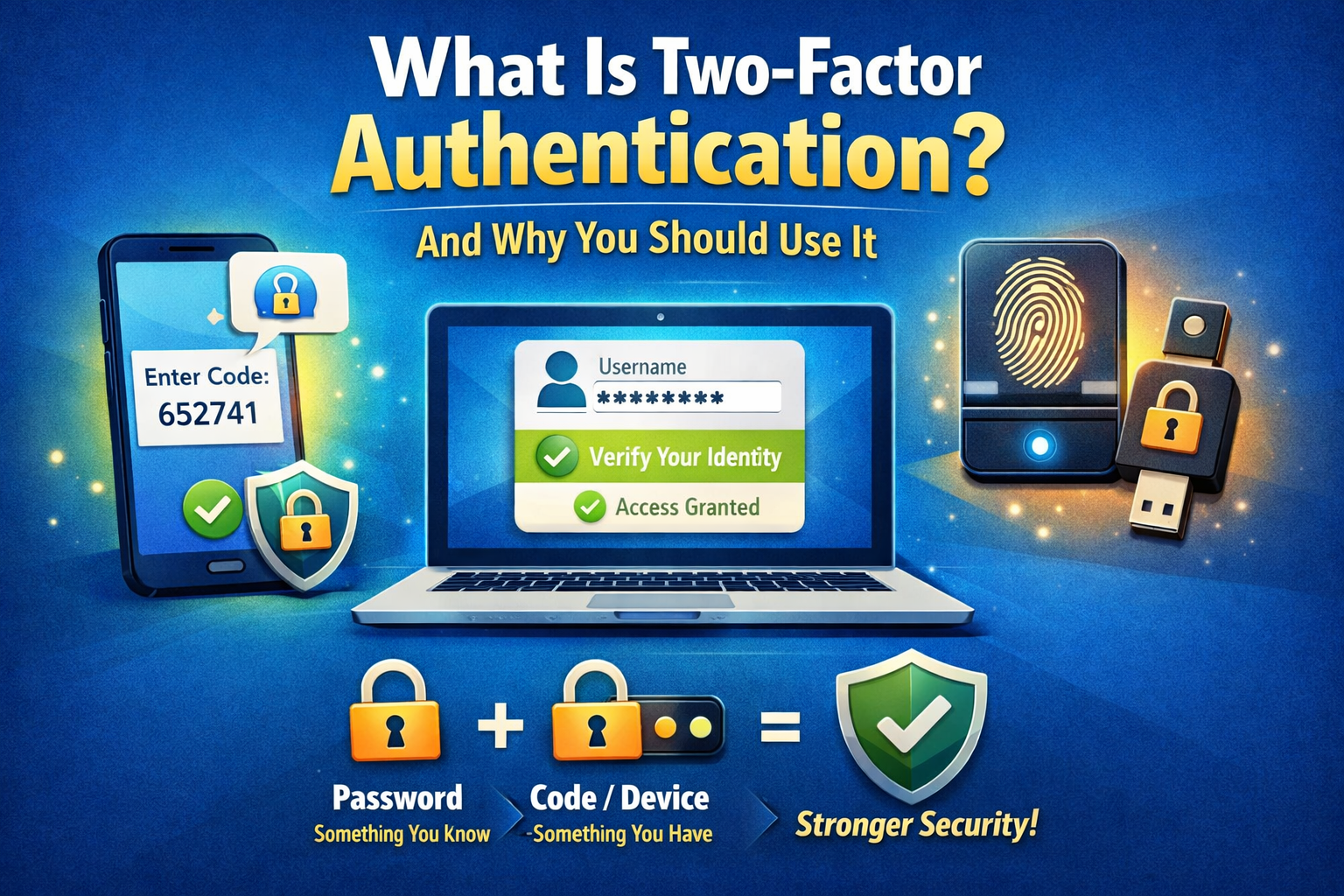
Two-Factor Authentication (2FA) is a security method that asks for two different forms of verification before you can log in to an account.
Normally, without 2FA, login looks like this:
- Enter username
- Enter password
- Access granted
With 2FA, login becomes:
- Enter username
- Enter password
- Enter or approve a second verification step
- Access granted
That second step makes your account much safer.
In simple words
Think of your password as the first lock.
2FA adds a second lock.
So even if someone opens the first lock, they still cannot easily get inside.
That is why the FTC describes two-factor authentication as one of the best ways to make accounts more secure beyond passwords alone.
Why Passwords Alone Are No Longer Enough
A lot of people still think:
“My password is strong, so I’m safe.”
Unfortunately, that is no longer true.
Even a “good” password can still be exposed through:
- phishing scams
- data breaches
- password reuse
- malware
- fake login pages
- guessed passwords
- credential stuffing attacks
The FTC specifically warns that attackers often use stolen passwords from data breaches or phishing to try logging into other accounts too.
That means even if you did nothing “wrong,” your password can still be at risk.
Real-life example
Imagine this:
You use the same password for:
- shopping
- a random old website
That old website gets hacked.
Now your email + password combination is leaked online.
A scammer tries that same password on your Gmail, Instagram, or shopping account.
If you do not have 2FA turned on, they may get in.
If you do have 2FA turned on, they still need your second verification step.
That is exactly why 2FA matters.
How Two-Factor Authentication Works
Now let’s understand how it works in real life.
When you log in, 2FA asks for two different factors.
These factors usually come from two different categories:
1) Something you know
This is information only you should know, like:
- password
- PIN
- passphrase
2) Something you have
This is something physically connected to you, like:
- your phone
- authenticator app
- security key
- verification device
3) Something you are
This includes biometric identity, such as:
- fingerprint
- face scan
- retina/iris scan
Microsoft and the FTC both explain 2FA using these same three categories of authentication.
Example of 2FA
A normal example is:
- Password = something you know
- One-time code on your phone = something you have
That combination becomes two-factor authentication.
A Simple Everyday Example
Let’s say you are logging into your email account.
Without 2FA
You enter:
- password
Done.
With 2FA
You enter:
- password
Then you also get:
- a code on your phone
or - a pop-up asking “Approve this sign-in?”
or - a fingerprint request
Only after that second step can you log in.
That means if someone steals your password, they still cannot enter your account easily.
Why Should You Use Two-Factor Authentication?
This is the most important part.
Because a lot of people think 2FA is “extra work.”
But in reality:
2FA is one of the easiest high-impact security habits you can build.
Here’s why.
1) It Protects You Even If Your Password Gets Stolen
This is the biggest reason.
Passwords get exposed all the time.
Sometimes through:
- fake login pages
- phishing links
- data leaks
- reused passwords
- malware
If your password is compromised, 2FA can still stop an attacker from logging in.
That is why Microsoft says 2FA helps prevent unauthorized access even if a password has already been stolen.
Why this matters
Because password theft is common.
And most people do not even realize when their password has already been exposed.
2) It Helps Protect Important Personal Accounts
Your accounts are not “just accounts.”
Many of them contain:
- private messages
- payment details
- photos
- personal documents
- OTPs
- tax or ID records
- shopping history
- business information
- work files
If someone gets into your email, they may also be able to reset:
- YouTube
- Amazon
- banking-related accounts
- other apps linked to your inbox
That is why email should always be protected with 2FA first.
If you protect only one account today, protect your email first.
3) It Makes Phishing Less Dangerous
Phishing is when scammers trick you into entering your password on a fake page.
This still happens every day through:
- fake bank emails
- fake courier links
- fake Instagram warnings
- fake Google login pages
- fake support messages
2FA does not make phishing impossible, but it can reduce the damage — especially when stronger methods like authenticator apps, passkeys, or security keys are used. Microsoft notes that phishing-resistant methods offer better protection than weaker options like basic SMS codes.
Simple truth
A stolen password is dangerous.
A stolen password plus your second factor is much harder for attackers to get.
That is why 2FA adds meaningful protection.
4) It Helps Protect Your Money and Financial Apps
This is especially important if you use:
- UPI apps
- online banking
- PayPal
- crypto wallets
- shopping wallets
- payment-linked accounts
If someone gets access to these, the consequences can be serious.
2FA helps reduce the chance of account takeover.
Real-world example
Imagine someone gets your shopping account login.
If that account stores:
- saved cards
- addresses
- order history
- payment preferences
they may misuse it.
2FA adds a strong extra barrier.
5) It Protects Your Social Media and Creator Accounts
If you are a:
- YouTuber
- Instagram creator
- freelancer
- business owner
- blogger
- online seller
then 2FA is not optional.
Because your account is not just personal.
It may be tied to:
- income
- audience
- reputation
- business trust
- ad revenue
- clients
Real-world example
A creator gets a fake “copyright issue” email and logs into a fake page.
Password is stolen.
Without 2FA:
- Instagram account gone
- YouTube channel compromised
- Gmail reset links exposed
With 2FA:
- the attacker still gets blocked at the second step
That one setting can save months or years of work.
Different Types of Two-Factor Authentication
Not all 2FA methods are equally strong.
Some are more secure than others.
Let’s break them down simply.
1) SMS Code (Text Message Verification)
This is one of the most common forms of 2FA.
After entering your password, you receive a code by text message.
Example:
“Your verification code is 472918”
You enter the code, and login is approved.
Pros
- easy to understand
- easy to set up
- available on many websites
Cons
- less secure than newer methods
- can be vulnerable to SIM swap attacks
- depends on phone signal/network
Microsoft specifically notes SMS is widely used but less secure than stronger methods because of risks like SIM swapping.
Best use
Good as a basic starting point, but not the best long-term option.
2) Authenticator App
This is one of the best options for most people.
Apps like:
- Google Authenticator
- Microsoft Authenticator
- Authy (where available)
generate short-lived login codes or send approval prompts.
How it works
You open the app and either:
- copy a code
- tap “Approve”
These codes usually expire quickly, often within 30–60 seconds, which improves security.
Pros
- stronger than SMS
- no SIM card needed
- safer against many common attacks
- works well for email, social media, and work accounts
Cons
- requires setup
- can be stressful if you lose your phone and didn’t save backup codes
Best use
For most users, this is one of the best 2FA methods to start with.
3) Push Notification Approval
This is very user-friendly.
Instead of typing a code, you get a notification like:
“Are you trying to sign in?”
Then you tap:
- Approve
or - Deny
Pros
- easy and fast
- convenient
- beginner-friendly
Cons
- if you blindly tap “Approve,” it becomes risky
- “push fatigue” can happen if users approve without checking
Important tip
Never approve a login request if you did not try to log in.
That may mean someone is trying to access your account.
4) Biometric Authentication
This includes:
- fingerprint
- face unlock
- facial recognition
This is common on phones, banking apps, and password managers.
Pros
- convenient
- fast
- hard to guess
Cons
- depends on device support
- sometimes used as convenience more than full account-level 2FA
Best use
Very good when combined with trusted devices and secure app systems.
5) Security Key / Hardware Key
This is one of the strongest forms of account protection.
A security key is a small physical device (often USB or NFC) that you tap or insert during login.
Examples include products from brands like:
- YubiKey
- Titan Security Key
Pros
- extremely strong protection
- very effective against phishing-style attacks
- excellent for important accounts
Cons
- costs money
- easier for advanced users than complete beginners
- must be kept safe
Best use
Excellent for:
- business owners
- creators
- journalists
- developers
- people with important email or financial accounts
Which 2FA Method Is Best?
If you want the simple answer:
Best to strongest order (practical view):
- Security key / passkey-style strong sign-in
- Authenticator app
- Push notification approval
- SMS code
- Email code (if used only as fallback, not ideal)
Best beginner choice
If you are just starting:
Use an authenticator app if available.
If that feels too technical right now, start with SMS and later upgrade.
The most important thing is:
Turn on some form of 2FA first.
Perfect is not required on day one.
2FA vs MFA: What’s the Difference?
A lot of people get confused here.
Let’s make it easy.
2FA = Two-Factor Authentication
Exactly two verification steps.
Example:
- password
- authenticator code
MFA = Multi-Factor Authentication
Two or more verification steps.
Example:
- password
- phone approval
- fingerprint
So:
All 2FA is MFA, but not all MFA is 2FA.
Microsoft explains 2FA as a specific subset of broader MFA.
For most everyday users, people often use these terms loosely.
But the basic idea is the same:
More than just a password.
Real-World Example: Why 2FA Can Save an Account
Let’s make this practical.
Scenario
A person receives an email:
“Your Instagram account may be disabled. Verify now.”
They panic and click.
The page looks real.
They enter:
- username
- password
Unfortunately, it was a fake page.
Now the scammer has their password.
Without 2FA
The scammer logs in immediately and may:
- change email
- change password
- remove owner access
- scam followers
- delete content
With 2FA
The scammer enters the stolen password… but then gets stuck because the account also asks for:
- app code
- approval prompt
- phone verification
And that second step is with the real owner.
That is why 2FA can save accounts even after a mistake.
What Accounts Should You Protect With 2FA First?
If you do not want to turn it on everywhere at once, start with the most important accounts first.
Top priority accounts
Turn on 2FA first for:
1. Email
This is the most important one.
2. Banking and payment apps
Anything linked to money.
3. Social media
Especially if you create content or run a business.
4. Cloud storage
Google Drive, iCloud, Dropbox, etc.
5. Shopping accounts
If they store saved cards or addresses.
6. Work accounts
Anything linked to your office, freelancing, or client access.
7. Password manager
If you use one, protect it strongly.
Best order if you are busy
If you want the shortest practical setup list:
- Banking/payment
- Instagram/Facebook/YouTube
- Cloud storage
- Shopping apps
That alone can improve your security a lot.
How to Turn On Two-Factor Authentication (Step-by-Step)
The exact steps vary by platform, but the process is usually very similar.
General 2FA Setup Process
Step 1: Go to account settings
Open the app or website and go to:
- Settings
- Security
- Privacy
- Login & Security
Step 2: Find “Two-Factor Authentication” or “Two-Step Verification”
Different platforms may call it:
- 2FA
- Two-Step Verification
- Two-Factor Authentication
- Multi-Factor Authentication
- Login Verification
Step 3: Choose your method
You may be offered:
- SMS code
- authenticator app
- push notification
- security key
Step 4: Verify your setup
The platform will usually ask you to:
- scan a QR code
- enter a test code
- approve a sample login
Step 5: Save backup codes
This is extremely important.
Many services give you emergency backup codes.
Do not ignore these.
Store them somewhere safe like:
- printed paper in a safe place
- password manager secure notes
- offline secure document
Microsoft specifically recommends keeping backup methods available so you do not get locked out if your phone is lost or unavailable.
Why Backup Codes Matter So Much
This is one of the most overlooked parts of 2FA.
A lot of people turn on 2FA… then later lose access because:
- phone got lost
- SIM stopped working
- authenticator app got deleted
- device got reset
Then panic starts.
That is why backup recovery matters.
Always do these 3 things
1. Save backup codes
2. Add a backup phone or device if allowed
3. Keep recovery email updated
These three habits make 2FA much safer and less stressful.
Common Mistakes People Make With 2FA
Turning on 2FA is good.
But using it badly can still create problems.
Here are the biggest mistakes to avoid.
1) Using Only SMS Forever
SMS is better than nothing.
But if a platform allows:
- authenticator app
- passkey
- security key
those are often stronger options.
So if possible, upgrade later.
2) Not Saving Backup Codes
This is probably the most common mistake.
People assume:
“I’ll remember later.”
Then phone is lost.
Then account recovery becomes painful.
Do not skip backup setup.
3) Approving Random Login Prompts
If you get a notification saying:
“Approve sign-in?”
and you did not try to log in…
Do not approve it.
That may be an attacker trying to access your account.
Always check before tapping.
4) Sharing Verification Codes With Others
Never share:
- OTP
- login codes
- authenticator app codes
- recovery codes
Even if someone claims to be:
- support staff
- bank team
- platform security
- customer care
No legitimate service should ask for your verification code in a casual support conversation.
5) Setting It Up and Forgetting It
Once a year, review:
- your recovery email
- your backup phone number
- your linked devices
- your security methods
Security is not “set once forever.”
A quick review helps prevent lockouts later.
Does 2FA Make You 100% Safe?
Important answer:
No, 2FA does not make you 100% safe.
But it makes you much safer than password-only accounts.
That distinction matters.
Because some attacks can still happen through:
- SIM swapping
- advanced phishing
- fake login approvals
- malware
- social engineering
That is why the best protection is:
Best security combo
- strong unique password
- 2FA turned on
- phishing awareness
- safe browsing habits
- backup codes saved
2FA is powerful — but it works best as part of a good overall security habit.
What If 2FA Feels Annoying?
A lot of people avoid 2FA because they think:
“It takes too much time.”
That concern is understandable.
But in real life, 2FA usually adds only:
- a few seconds
- one tap
- one quick code
That is a very small tradeoff compared to:
- losing your Gmail
- losing your Instagram
- losing payment access
- losing important files
- getting locked out of your own account
Simple truth
2FA is slightly inconvenient.
Account theft is far more inconvenient.
Why 2FA Is Especially Important in 2026
In 2026, scams and account theft methods are becoming more advanced.
Attackers now use:
- better phishing pages
- fake support messages
- cloned brand emails
- AI-written scam text
- social engineering tricks
That means password-only protection is weaker than ever.
This is exactly why strong sign-in protection matters more today than it did a few years ago.
In short
The smarter scams become, the more important 2FA becomes.
Best Beginner Security Setup (Simple Recommendation)
If you want the easiest possible setup, do this:
Your ideal beginner security checklist
1. Use a unique password for each important account2. Turn on 2FA for your email
3. Turn on 2FA for your banking/payment apps
4. Turn on 2FA for Instagram/YouTube/social media
5. Save backup codes safely
6. Never approve unknown login prompts
7. Never share OTP or login codes
If you follow only these steps, your online safety improves a lot.
What is two-factor authentication in simple words?
Two-factor authentication (2FA) is an extra security step that asks for a second proof of identity after your password, such as a code on your phone or an approval notification.
Why is two-factor authentication important?
It protects your account even if your password is stolen, guessed, leaked, or phished.
Is 2FA better than just a password?
Yes. Passwords alone are no longer enough for strong account protection.
What is the safest type of 2FA?
Generally, security keys, passkey-style strong sign-in, and authenticator apps are safer than basic SMS codes.
Is SMS 2FA safe?
It is safer than no 2FA, but not as strong as authenticator apps or security keys because SMS can be more vulnerable to certain attacks.
Should I turn on 2FA for Gmail and Instagram?
Yes — especially for email and social media. These are among the most important accounts to protect.
Can I lose my account if I lose my phone?
Yes, that can happen if you do not save backup codes or recovery methods. That is why recovery setup is very important.
Does 2FA stop hackers completely?
Not completely, but it significantly reduces the chance of unauthorized access.
Final Thoughts
If there is one simple security habit that almost everyone should start using, it is this:
Turn on two-factor authentication.
It is not complicated.
It is not only for “tech people.”
And it does not require you to be an expert.
It is simply one of the smartest ways to make your online accounts harder to steal.
Because in today’s internet world, your accounts hold:
- your identity
- your money
- your communication
- your content
- your work
- your memories
That is too important to protect with only one password.
So if you have not turned on 2FA yet, start with this order:
1. Email
2. Banking/payment apps
3. Social media
4. Cloud storage
5. Work accounts
That one step can prevent a lot of future stress.
And in 2026, that is not “extra security.”
That is basic digital safety.

Common Tech Scams in 2026 and How to Avoid Them
Technology is making life easier in 2026. We shop online. We pay with UPI. We book services from